Further information about MIDI play back in my software programs; and about connecting keyboards without USB ports.
These OS versions has no build-in program for MIDI setup. Therefore you will need a program for this operation.
• Get my MIDI Out Setup software program.
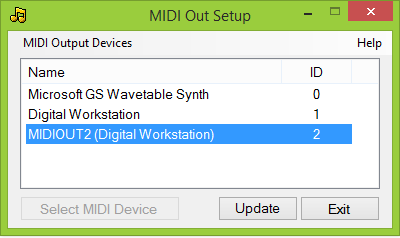
Select a MIDI device in the computer as shown at the image.
Configure in Windows Start > Settings > Control Panel > Sounds and Multimedia > Audio
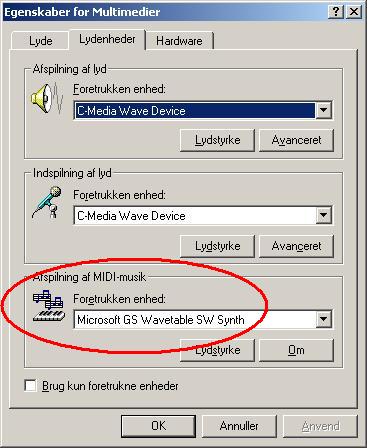
(From a Danish Windows 2000 - other versions and languages looks similar)
If you want to use your keyboard for MIDI playback; you must
• Install the USB-MIDI driver software supplied with your keyboard. If you miss this, you can get it from Yamaha.
• Get a USB cable with a USB A connector in the one end, and a USB B connector in the other end.
• Plug the USB A connector into the computer, and the USB B connector into the keyboard USB To Host port.
For further details consult your keyboard manual or the documentation with the driver software.
A number of my software programs has MIDI play back features. In these programs you will find a MIDI Setup menu.
Notice if nothing is selected in these programs, the computers default MIDI play back device will be used.
For programs written in a .Net language, the default MIDI play back device is the one selected above. Other available MIDI devices can be selected in the program.
For programs written in Java, the default MIDI play back device is the "Real Time Sequencer", which is built-in in Java. Other available MIDI devices can be selected in the program.
Java has another built-in MIDI device named "Gervill".
Selecting a MIDI play back device is for use in the specific software program only; and does not change the MIDI device selection at the computer generally.
In this case you must use a COM port at the computer, and the keyboard To Host terminal.
• Connect your keyboard and your PC with the "To Host" cable, which comes with your keyboard (or buy one). If you don't have a free COM Port at your PC, read below.
• Install the Yamaha CBX driver supplied with your keyboard. If you don't have it; get it from Yamaha.
• Be sure to set the switch at the rear side of your keyboard's "To Host" terminal to: PC2. Read the section about To Host terminal in your manual, if you are in doubt.
Select (like above) the "Yamaha CBX A Driver" as MIDI play back device.
Note: This paragraph is not relevant when the keyboard USB port is used.
Using the keyboard To Host terminal
• You need a free COM Port for the "To Host" cable.
• Most stationary computers have only one of these (which is often used by other devices, e.g. a modem); and many laptops don't have a COM Port at all.
If you have no COM Port at your PC
• Insert an extra card into your computer to get a COM Port.
or
• Use an USB Port if you have one of these (read below).
If you have no free COM Port at your PC
• Insert an extra card into your computer to get an extra COM Port.
or
• Plug and unplug the two cables which have to share the only COM Port. Don't plug or unplug while the computer is running.
or
• Use an USB Port if you have one of these (read below).
If you have an USB port at your PC
• Get a USB to Serial Port Converter cable, e.g TU-S9 from TRENDnet.
• Plug the cable in the USB port.
• Windows will start the "Install new Hardware" wizard.
• Insert the CD supplied with the cable into your CD drive - and install the driver for the cable.
• Now your computer has a/an extra COM Port.
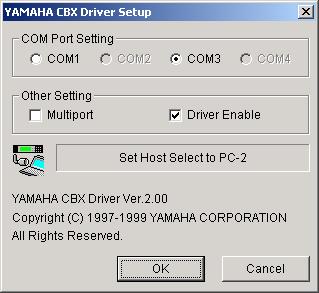
• Configure the Yamaha CBX Driver in Windows Start > Settings > Control Panel > Yamaha CBX Driver
• Select COM Port for the driver. If a computer has a COM Port this is by default COM1. Then choose COM3 for the Yamaha CBX Driver.
• Restart the computer.